 Fast, Free Delivery
 Money-Back Guarantee
 Lifetime Customer Support
 365 Days Warranty
Support Center
Product support
H3 Pro
Find product guides, troubleshooting answers, manuals and customer support.
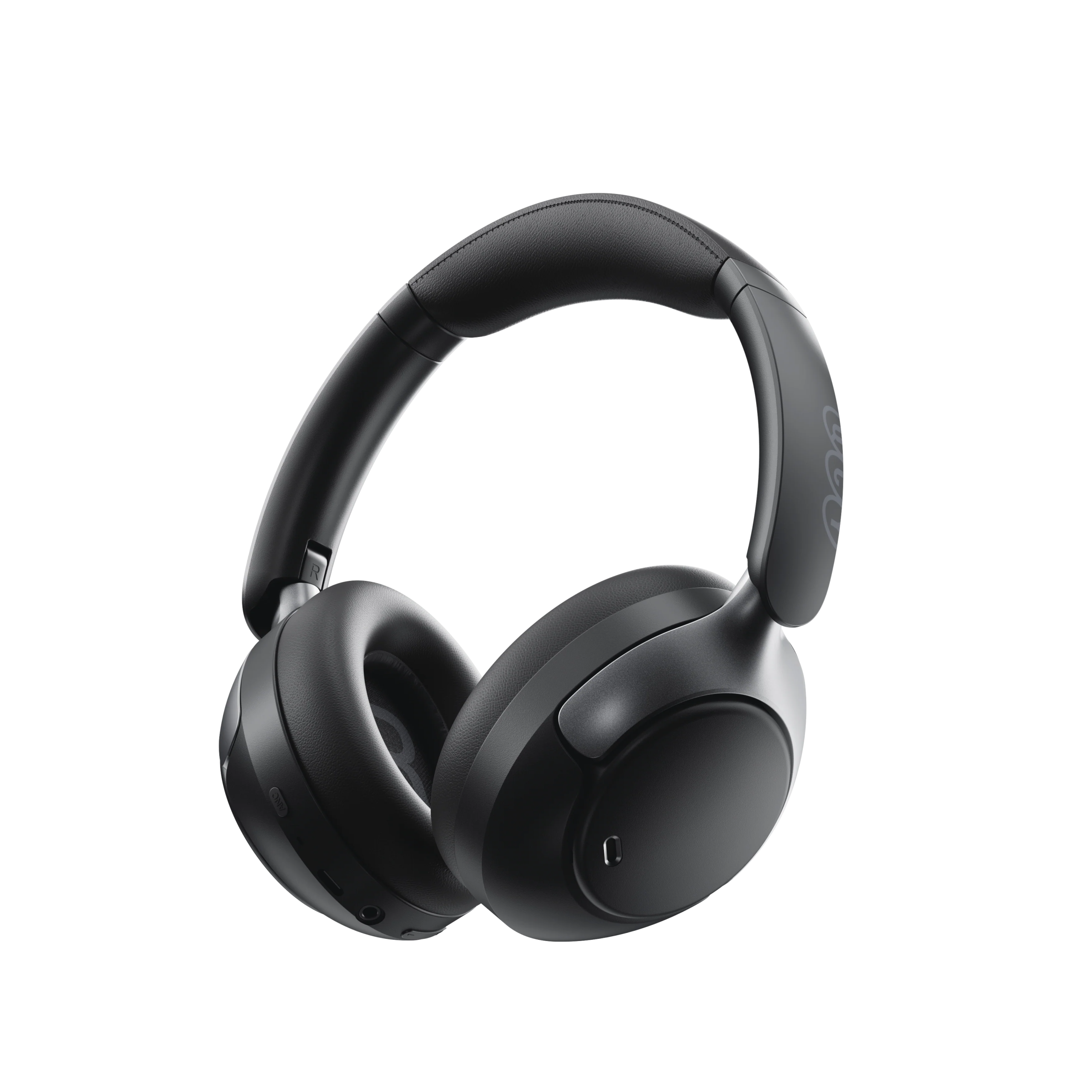
Support Video
FAQ
What to do if firmware update fails?
1. Check network signal issues, such as cellular signal/Wi-Fi signal.
2. Try not to exit the background/update page during the upgrade process.
How to update your headphones' firmware?
1. Connect your headphones to the QCY app.
2. Go to Settings - Firmware Update.
3. Tap Update.
4. If no firmware update is displayed, your firmware is already up-to-date.
How to use the headphone finder function?
The earphones can only be used when connected to both the phone's Bluetooth and the app.
1. Open the QCY app, go to Settings, and tap the earphone location feature to see the earphones' exact location.
2. Tap to play a sound to locate the earphones by listening to the audio.
How to connect to the QCY app?
1. Get the QCY App.
The QCY app is available on iOS and Android devices. It can be installed from the Google Play Store or the Apple App Store.
2. Connect the QCY earbuds with your device via Bluetooth (i.e. a smartphone or tablet)
3. Use the QCY app for enhanced product experience.
Why does the QCY app ask for location access?
The app itself doesn’t normally need location access. However, when Bluetooth Low Energy (BLE) is used to find your earbuds, Android requires location permission.
If you prefer not to share your location, close the app and try pairing again.
What should I do if my earphone are not found on the QCY App?
1. Confirm that your phone has GPS (location) enabled.
2. Go to your phone's app settings, find the app's permission settings, and set location permission to "disable".
3. Open the app, add your headphones, and when you see the prompt to grant location permission at the top, click "Allow Location".
4. Exit the app from the background.
5. Open the app and go to the search page.
6. Turn on your headphones and try searching for the link.
7. If the problem persists, try uninstalling the app and then searching for and downloading QCY again from your phone's app store.
Why can't my headphones turn on?
1. Make sure the earphones are charged.
2. Check if the ear tips are installed properly.
3. If the earbuds still don’t turn on after charging, contact our service center.
My earbuds' battery runs out too quickly. What can I do?
This could be due to incorrect charging method.
Please completely drain your earphones' battery, then recharge them using a 5V charger for about two hours.
How do I check the battery level of the earphone?
Pair the earphone with the QCY app on your phone to check the battery level.
To download the app, just search for "QCY" in your app store.
What can I do if my earphone won't connect to my device?
1. Go to your device's Bluetooth menu and delete the pairing record for the true wireless earbuds, then turn off Bluetooth.
2. Reset your true wireless earbuds. Follow the instructions for your specific model, which you can find in its quick start guide, in the FAQ section on the QCY.com product page, or on the QCY YouTube channel.
3. Turn on your device's Bluetooth again, search for your true wireless earbuds, and pair.
You could also:
Test your true wireless earbuds with a different device to check if the problem is caused by compatibility issues.
Ensure there are no physical objects hindering the Bluetooth connection.
How to connect the earphone with two devices at the same time?
To connect two devices:
1. Pair the earbuds with device A.
2. Disable Bluetooth on device A, and the earbuds will enter pairing mode.
3. Pair the earbuds with device B.
4. Re-enable Bluetooth on device A and reconnect to the earbuds.
After this initial setup, the earbuds will automatically connect to both devices next time.
How should I care for my earphone?
1. Use your earphone regularly to avoid battery over-discharge. Aim to use them at least once a month.
2. Charge the earphone after each use, and don't wait until they drop below 20% to charge.
3. Avoid pulling on the headband of the headphones during use to prevent breakage.
How to remove the earmuffs for cleaning.
Use your left hand to control the earcups and your right hand to control the headphones. Rotate the earcups counterclockwise with your left hand to remove them.
How to use a wired connection for H3 pro?
The H3pro supports playback via 3.5mm or Type-C cable connection, and can use the microphone and noise cancellation.
[With the Type-C port, you can charge and use the headphones simultaneously, and noise cancellation can be continuously enabled. With the 3.5mm port, noise cancellation requires the headphones to be powered on.]
How to switch between ANC/transparency/normal modes?
You can switch between modes within the application:
Path: Device -- Sound -- Turn on Noise Cancellation.
Alternatively, you can switch between different modes by pressing the ANC button.
What should I do if the earpiece works fine, but it can't record my voice.
Please use your phone's built-in recording function to confirm if sound can be recorded.
Do not use other apps to perform this operation, as this may disable the headset microphone.
If making or receiving calls, you need to set the default receiving device to the headset.
What can I do if the earphone have poor sound quality?
You can try the following troubleshooting steps:
Experiment with different types of music and ensure that the input audio source is free of distortion or other noise.
Try different EQ modes on the QCY app and customize the EQ to your liking.
Manuals
Still Need Help?
 Call Us+1 (917) 807-6754
 Submit FeedbackSubmit Here
 Chat with Us
 Customer Supportservice@qcyearphone.com
 Marketing & Partnershiprice@qcyearphone.com
 Press Inquirypr@qcyearphone.com